
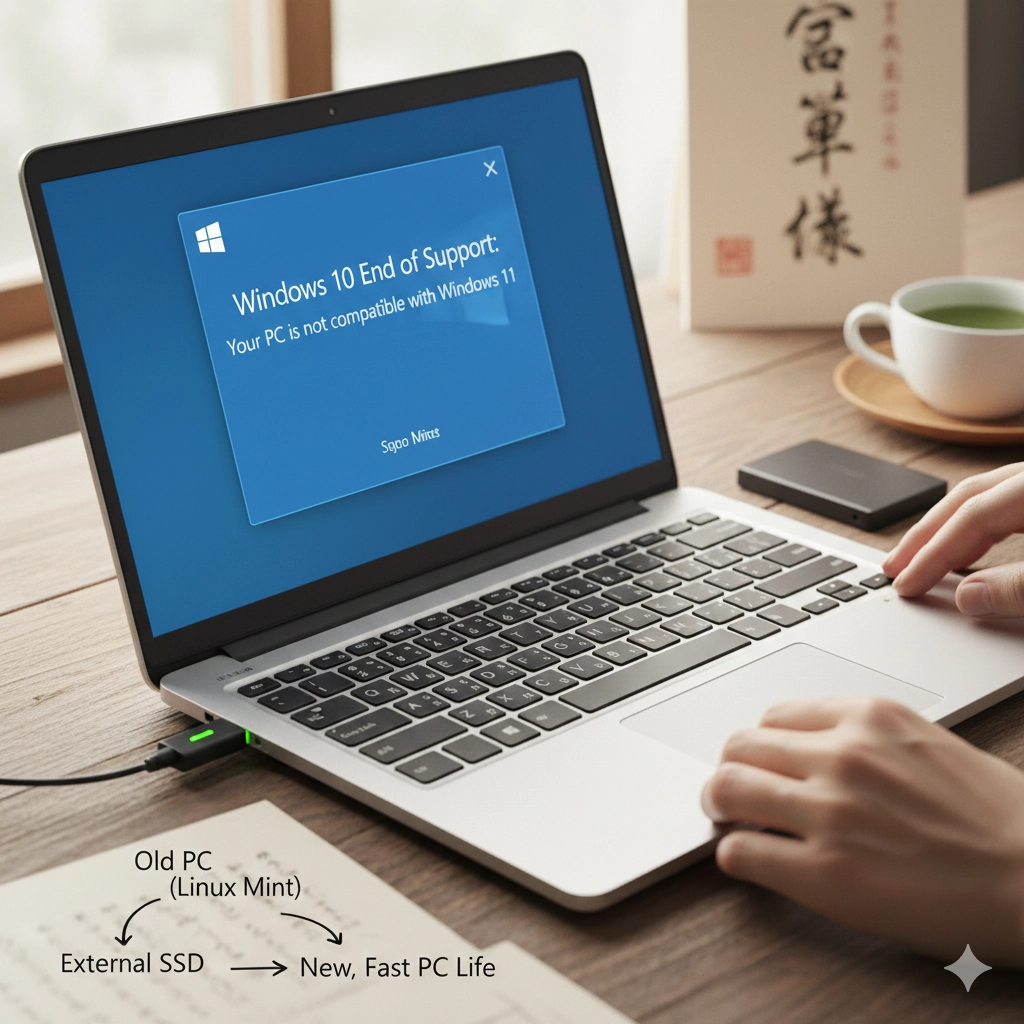
Microsoft is designating millions of perfectly usable PCs as “obsolete” — not because they’ve broken down, but because of new software requirements. If you’ve seen the warnings about Windows 10 end of support, you’re not alone. And if your PC can’t run Windows 11, you’re probably wondering what to do next.
The good news: you don’t have to buy a new computer.
What “End of Support” Actually Means
When Windows 10 reaches end of support, your computer doesn’t suddenly stop working. The real problem is that security updates stop.
Without those patches, newly discovered vulnerabilities go unfixed. Over time, risks increase – especially for online banking, passwords, and sensitive data. New software also becomes less compatible. The machine keeps running, but it becomes harder to justify using as your main internet-connected device.
Confirm Your Situation
Before doing anything, verify whether your PC can actually upgrade:
- Windows Update — Check if Windows 11 is already being offered to you.
- PC Health Check — Use Microsoft’s free tool to see exactly why your PC is blocked.
The TPM 2.0 Problem
The most common blocker is a security chip requirement called TPM 2.0. Microsoft made this mandatory for Windows 11, and most computers built before 2018 don’t have it, or don’t have the right version. This doesn’t mean your PC is broken. It just means it doesn’t meet Microsoft’s new hardware requirements.
Your 4 Real Options
| Option | Cost | Security | PC Lifespan | Privacy |
| Keep Windows 10 | Free | Low (no patches) | Ends Oct 2025 | High telemetry & ads |
| Buy a New PC | $1,000+ | High | Long-term | High telemetry & AI bloat |
| Force Windows 11 | Free | Medium | Unpredictable | Still high telemetry |
| Linux Mint | ~$0 (optional SSD cost only) | High | Indefinite | Zero telemetry — you own it |
Option A: Keep Using Windows 10 This is the “do nothing” path. It works in the short term, but you’re using an OS that becomes less safe over time. Not recommended as a long-term solution.
Option B: Buy a New PC Simple, but often unnecessary if your machine still works fine – and expensive.
Option C: Force Windows 11 onto Unsupported Hardware Possible, but risky. Future updates may break your system. Not recommended for people who want stability.
Option D: Switch to Linux If your PC still works, this is the cleanest long-term path. You keep your hardware, stay secure, and avoid forced upgrade cycles entirely.
Why Linux Is the Practical Choice
Linux is a modern, lightweight operating system that typically uses fewer resources than Windows.
- 速度: — Most older PCs feel noticeably faster on Linux, because there’s less running in the background.
- Ongoing security — Linux continues receiving security updates long after Windows 10 stops.
- No forced tracking — No Microsoft account required. No “AI Recall.” No background telemetry. Your data stays on your machine.
Which Linux should you use? For beginners, the goal is stability and familiarity. That’s why Jiritsu Lab recommends Linux Mint. It looks and feels like Windows, making the transition as smooth as possible.
The Safest Way to Switch
Most guides make Linux feel like a high-stakes technical leap. Jiritsu Lab uses a safety-first flow built specifically for cautious beginners. This guide is designed to be reversible: you can stop after Mode 1 or Mode 2 and your PC remains unchanged.:
- [Mode 1: Preparation] — Create a USB installer. Nothing on your PC is changed.
- [Mode 2: Try Linux Without Installing] — Run Linux directly from the USB to test your Wi-Fi, sound, and display before committing.
- [Mode 3: Choose Your Method] — We recommend an External SSD install, which keeps Windows completely untouched and makes Linux physically removable.
- [Mode 4: Step-by-Step Install] — A slow, careful walkthrough of every screen.
- [Mode 5: Get Comfortable] — Learn how to manage updates and set up Japanese input (IME).
“Will My Stuff Still Work?”
This is the right question. Here are honest answers for most everyday users.
Web browsing, YouTube, Netflix, email — Yes. Linux handles all of this without issue.
Zoom and video calls — Usually yes. Most services work fine in the browser, and Zoom has an official Linux version.
Microsoft Office files (Word, Excel) — You can use LibreOffice (free) to open most Word and Excel files. If your work depends on precise formatting, you might prefer Google Docs in the browser, or keep Windows available as a backup via dual boot. For normal home use, most people are completely fine.
Printers and peripherals — Usually yes, but printers are the most “it depends” category. That’s exactly why Mode 2 exists – you can test Linux on your specific machine before making any commitment.
What To Do Right Now
If you’re feeling pressure or uncertainty, here’s the clean first move:
→ [Mode 1: Create the Linux Mint USB Installer]
That step does not install anything. It doesn’t touch Windows. It’s just preparation – and it takes about 20 minutes.
次に:
→ [Mode 2: Try Linux Without Installing]
After Mode 2, you’ll know whether Linux works on your computer, instead of guessing. That alone removes most of the anxiety.
FAQ
Is Linux really free? Yes. Linux Mint is free to download, install, and use. Updates are free too.
Will it make my old PC faster? Often, yes – especially if the machine already feels slow on Windows 10. Linux uses far less in the background.
Can I go back to Windows if I don’t like it? If you use the external SSD method, Windows stays completely untouched on your internal drive. Simply unplug the SSD or select Windows at startup.
Do I need to be technical? No. If you can follow step-by-step instructions and click carefully, you can do this.
Is Linux safe after Windows 10 support ends? Yes. Linux continues receiving security updates independently of Microsoft, and that’s one of the main reasons it’s worth considering.
Final Thought
Your computer didn’t break. Microsoft changed the rules. If you want to keep your hardware, avoid e-waste, and take back control of your own machine, Linux is the cleanest path forward.
Take the first step – it doesn’t change anything on your PC: