
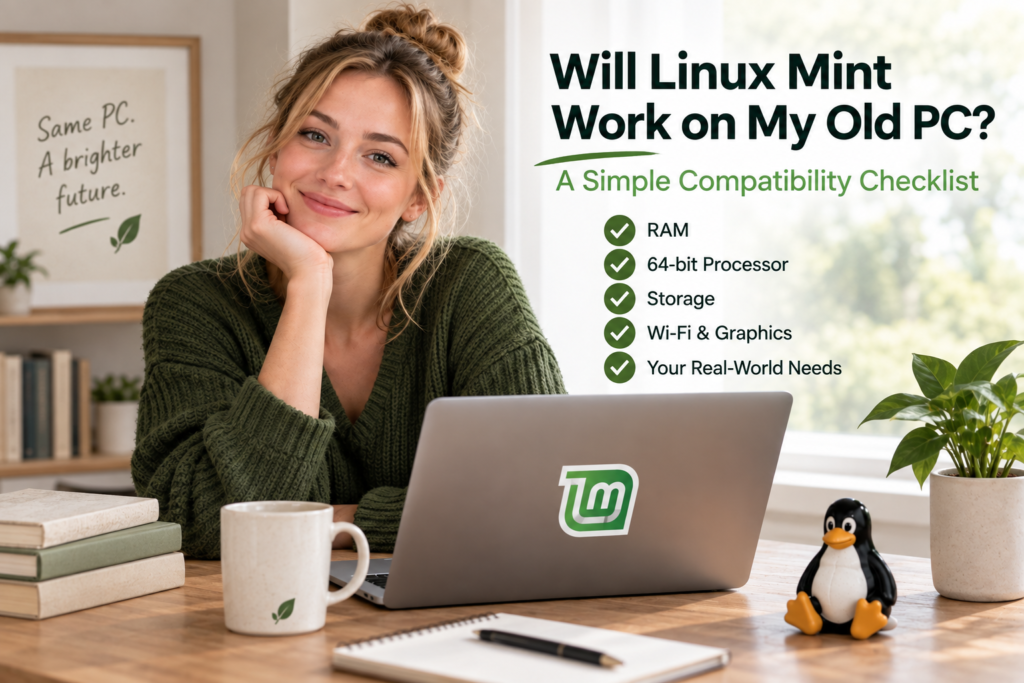
If you’ve landed on this page, you’re probably in one of two situations. Either Windows 10 has stopped receiving security updates, or you tried to upgrade to Windows 11 and discovered your computer isn’t allowed to. Either way, your PC still works. It still boots up, still opens your programs, still does what you need it to do. And now you’re wondering:
“Can I actually put Linux Mint on this thing, or is it just too old?”
That’s a completely reasonable question, and it deserves a straight answer rather than a sales pitch. So let’s go through it together, calmly, one piece at a time.
The first thing to know is this: the age of your computer, by itself, doesn’t tell you whether Linux Mint will work well on it. A ten-year-old laptop can sometimes run Linux Mint beautifully, while a five-year-old machine might have one specific piece of hardware that causes headaches. What actually matters is a short list of practical things — and we’re about to walk through every one of them.
The Short Answer
Most PCs that were sold in the last 12–15 years can run Linux Mint in some form. The real questions aren’t about age. They’re about:
- How much RAM (working memory) your PC has
- Whether the processor is 64-bit
- How much healthy storage space you have
- Whether your Wi-Fi and graphics hardware are well supported
- What you actually want to do with the computer
We’re not going to tell you that Linux Mint works on every old PC, because that wouldn’t be true. Some machines have failing hard drives, unusually limited memory, or hardware that simply isn’t well supported. This checklist is designed to help you find out honestly, before you commit any time to the process.
The Simple Compatibility Checklist
A. How old is the PC?
Age is useful context, not a test on its own. It gives you a rough idea of what era of hardware you’re dealing with, but two computers from the same year can behave very differently once Linux is involved. Use age as a starting point, not a verdict — the rest of this checklist is what actually matters.
B. How much RAM does it have?
RAM is your computer’s short-term working memory — think of it as desk space. The more you have, the more programs and browser tabs you can have open at once before things start to feel sluggish.
Linux Mint’s official minimum is 2 GB of RAM, with 4 GB recommended for comfortable everyday use. In practice, 4 GB is a reasonable baseline if you’re mostly browsing the web, checking email, and writing documents. If you like to keep many browser tabs open, 8 GB will feel noticeably smoother. Anything below 2 GB is going to be a genuine struggle, regardless of how the rest of the machine looks.
C. Is the processor 64-bit?
This one matters more than it used to. Current versions of Linux Mint require a 64-bit processor — Mint dropped support for older 32-bit systems some years ago. The good news is that almost every PC sold since around 2010 has a 64-bit processor, so this is unlikely to be a problem unless your machine is genuinely ancient. We’ll show you exactly how to check this from Windows in a moment, so you won’t need to guess.
D. Does the computer have enough storage?
Linux Mint itself doesn’t need much room — the official minimum is 20 GB, though 100 GB or more is recommended once you factor in your own files, photos, and applications. If your hard drive has plenty of healthy free space, you’re in good shape.
One honest caveat: installing Linux does not fix a failing hard drive. If your PC has been showing warning signs — unusual noises, frequent freezing, files that won’t open — that’s a hardware problem Linux can’t solve. Worth keeping in mind before you invest time in the process.
E. Does Wi-Fi work?
This is one of the more unpredictable items on the list, because it depends on the specific wireless chip inside your PC rather than the computer’s age or brand. Most common Wi-Fi hardware works well with Linux Mint out of the box, but occasionally an older or unusual wireless adapter needs a bit of extra setup. The good news is that this is easy to check before you install anything — more on that below.
F. What graphics hardware does it use?
For everyday tasks — web browsing, documents, video calls, YouTube — ordinary integrated graphics (the kind built into most laptops and budget desktops) are perfectly adequate on Linux Mint. You don’t need a gaming graphics card, and you don’t need to research GPU model numbers. The exception is unusual or very old dedicated graphics cards, which occasionally need extra driver attention. For the average PC used for everyday tasks, this is rarely a real obstacle.
G. What do you actually use the computer for?
This might be the most important question of all, and it’s easy to overlook while you’re focused on hardware specs. Linux Mint is an excellent fit for web browsing, email, YouTube, video calls, word processing, spreadsheets, printing, and managing photos — the things most people do with a home computer most of the time.
If your PC’s main job is one specific piece of Windows-only software that has no good alternative — certain specialized accounting programs, for instance, or software tied to a particular piece of hardware — that’s worth thinking through honestly before you switch. For the vast majority of everyday use, though, Linux Mint covers the same ground Windows does.
A Simple Way to Judge Your Situation
Rather than a rigid scoring system, here’s a general sense of where most PCs land:
Probably a good candidate: 4 GB of RAM or more, a 64-bit processor, a healthy hard drive with reasonable free space, and everyday use like browsing, email, documents, and video calls.
Worth testing first: Borderline RAM (around 2–3 GB), an unfamiliar or older Wi-Fi adapter, or a graphics card you’re unsure about. These often work fine — but they’re exactly the kind of thing worth confirming before installing anything.
Probably not the best candidate right now: A failing or extremely limited hard drive, very little RAM even by minimum standards, or genuine day-to-day dependence on Windows-only software with no workable alternative.
These are general patterns, not hard rules — your own testing (covered below) is what gives you a real answer.
How to Check Your PC’s Specs From Windows
You don’t need any extra software for this. Windows already has what you need.
RAM and processor type: Click the Start menu, then go to Settings → System → About. Under “Device specifications,” you’ll see Installed RAM and System type. If it says “64-bit operating system, x64-based processor,” you have a 64-bit processor — the box you need checked for point C above.
Storage space: In the same Settings app, go to System → Storage. This shows you how much space is used and how much is free on your main drive.
That’s genuinely all you need to check. No downloads, no technical tools — just a couple of clicks in Settings.
The Most Important Test: Try Linux Before You Install Anything
Here’s the part that matters more than any specification on this page: you can try Linux Mint on your actual computer without installing it or changing anything.
This is the whole idea behind Jiritsu Lab’s step-by-step approach — you prepare a USB drive, start your computer from it, and Linux Mint runs temporarily, directly from the USB. Nothing is installed. Nothing on your hard drive is touched. When you’re done, you simply restart and you’re back in Windows exactly as it was.
While you’re running Linux this way, you can check the things that are genuinely hard to predict from a spec sheet:
- Does Wi-Fi connect?
- Does the sound work?
- Does the screen display properly?
- Do the keyboard, mouse, and trackpad respond normally?
- Does everything generally feel responsive?
If everything works well, you can move forward with real confidence. If something doesn’t work — say, Wi-Fi doesn’t connect — you’ve learned that before making any changes, which is exactly the point.
[ Try Linux Mint Without Installing It]
Common Questions
My computer is 10 years old. Is that too old?
Not necessarily. Plenty of ten-year-old PCs run Linux Mint comfortably, especially for browsing, email, and documents. Check the RAM, processor, and storage health rather than the age alone.
I only have 4 GB of RAM. Can I still use Linux Mint?
Yes — 4 GB is the level Linux Mint itself recommends for comfortable everyday use. You may notice it more if you keep a large number of browser tabs open, but for typical daily use it’s a reasonable amount.
Will my Wi-Fi work?
Most likely, but it depends on your specific wireless hardware. This is exactly what the live-USB test is for — it tells you directly, rather than leaving you to guess.
Will my printer work?
It depends on the printer manufacturer and model, but many common home printers work well with Linux Mint. As with Wi-Fi, this is worth testing rather than assuming either way.
Can I still open Word and Excel files?
Yes, for the most part. Linux Mint includes LibreOffice, a free office suite that opens and saves Word and Excel files. Formatting is usually preserved well for everyday documents; very complex spreadsheets with advanced macros are the main exception.
What if Linux Mint doesn’t work well on my PC?
Then you’ve learned something valuable, and you learned it safely. That’s precisely why we recommend testing from a USB before installing anything — discovering a hardware issue during a test costs you nothing. Your Windows installation is untouched either way.
A Note of Honesty
Linux Mint is not magic. It won’t rescue a hard drive that’s failing, and it won’t make a computer with genuinely inadequate memory feel fast. Some older machines have hardware that Linux simply doesn’t support well, and in those cases, the honest answer is that Linux Mint isn’t the right fit — at least not without changes to the hardware itself.
We’d rather tell you that plainly than convince you to spend an afternoon on something that won’t work out. If your PC checks out reasonably well against this list, there’s a good chance it has real life left in it.
Where to Go From Here
You don’t need to guess whether your old computer can run Linux Mint. Check your RAM, processor type, and storage from Windows Settings — it takes about two minutes. Think honestly about what you actually use the computer for. And then, most importantly, try Linux Mint from a USB drive before you install anything at all.
That’s the safest way to get a real answer, on your real computer, with nothing at stake.
[Try Linux Mint Without Installing It]
Don’t replace a computer that still works until you’ve actually found out whether you need to.