
Is your trusty Windows 10 PC about to become unsafe? Don’t panic. In this post, we’ll explain what the end of Windows 10 support really means for you, and why switching to Linux Mint could be a smart, safe, and frugal alternative – especially for older Japanese PC users worried about waste (“mottainai”) and complexity. We’ll cover what happens when security updates stop, how Linux keeps your computer secure, and what everyday life on Linux Mint is like (spoiler: it’s not as hard as you think!).
The Windows 10 end of support: What Does It Mean?
Microsoft officially ended free support and security updates for Windows 10 on October 14, 2025[1]. This doesn’t mean your Windows 10 computer will suddenly stop working on that date. It does mean that Microsoft will no longer fix any new security holes in Windows 10[2]. If hackers discover a vulnerability in the system, Windows 10 will not get patched – leaving your PC exposed to viruses or malware that could steal your data or infect your files[3]. In short, continuing to use Windows 10 past its end-of-support date is like living in a house with the door left unlocked. The house is still standing, but it’s much easier for unwelcome “guests” to stroll in.
Without security updates, the risk of using Windows 10 will increase over time. Newer software and hardware may also start to become incompatible, causing things to behave oddly or crash[4]. And since Microsoft isn’t providing technical support anymore[5], if you run into problems you’re essentially on your own. For most everyday users, this situation is worrying. No one wants to deal with viruses, or wonder if it’s safe to do online banking on an unpatched system.
Microsoft’s official advice is to upgrade to Windows 11 or buy a new PC that can run it, in order to “stay secure.” But for many people, especially those with older computers, that’s not so simple – or desirable.
Stuck Between Buying New or Staying Unsafe
Upgrading to Windows 11 isn’t always just a click away. Many older PCs cannot run Windows 11 due to strict hardware requirements (like needing a special security chip called TPM and a fairly recent CPU). In fact, as of 2025, over 40% of PCs in Japan still ran Windows 10, and by one estimate around 20 million of those machines might be unable to upgrade to Windows 11 due to hardware limits[6]. That leaves a huge number of people with a tough choice: risk security problems on Windows 10, or spend money on a new computer (and e-waste the old one) just because of a software deadline.
For many Japanese users, especially in the older generation, tossing out a perfectly usable PC just because Microsoft says so feels wrong. There’s even a cultural concept for this: “mottainai,” meaning a sense of wastefulness. As one Japanese user said when facing Windows end-of-support, his PC “still works but OS support ended… it’s mottainai to not use it,” so he looked for a way to keep it alive[7]. Another person noted they found it too wasteful to replace good hardware solely due to an OS upgrade, which led them to try Linux Mint[8]. This feeling is common – why throw away a functional computer if there’s another option?
Cost is another concern. Buying a new Windows 11 PC can easily cost anywhere from ¥50,000–¥150,000 (hundreds of dollars), a significant expense for retirees or small businesses on a budget. Yes, Microsoft offers Extended Security Updates (ESU) for Windows 10 for a fee, but it’s not cheap (around $61 per PC for the first year, doubling each year) and is geared toward organizations[9][10]. Home users are unlikely to qualify or want to pay for that. Essentially, the official path to stay secure is “buy new hardware or pay Microsoft more”. No wonder many feel pressured and frustrated.
Linux Mint: A Safe, Free Replacement for Windows 10
So, what’s the “another option”? For a growing number of people, the answer is Linux – and specifically a friendly version of Linux called Linux Mint. Linux Mint is an operating system (just like Windows) that you can install on your PC for free. It’s community-developed, doesn’t require any Microsoft account or license, and crucially, it runs well on both older and newer computers. You don’t have to buy new hardware just to use it. In fact, many folks use Linux to give their aging PCs a “second life” instead of discarding them, and find the experience refreshingly fast and secure[11][12].
One big reason we recommend Linux Mint to replace Windows 10 is because it’s designed to be beginner-friendly and familiar. If you’re used to Windows, Mint will feel comfortable. The desktop has a taskbar and a Start Menu-like button in the corner, just as Windows 7/10 did[13]. You can click a menu to find your programs, open folders and files in a similar way, and generally navigate without a steep learning curve. In fact, a Japanese tech reviewer noted that Linux Mint’s interface is so similar to Windows that there was “almost no stress” in the transition[13]. Another user even remarked that modern Linux desktops have become easier to use than Windows 10 or 11 in some cases[14].
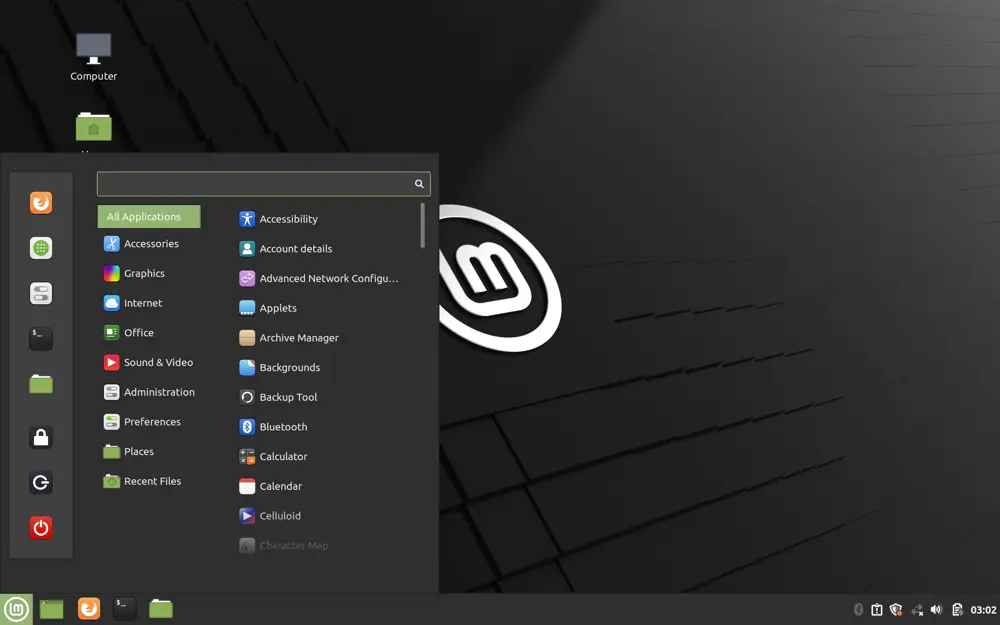
For example, Linux Mint’s desktop layout will look reassuringly familiar to any Windows user. In the image above, you can see Mint’s menu open on the left, showing applications categorized much like Windows’ Start Menu. This traditional layout means you already know how to use most of it – you can launch your browser, open documents, or shut down the computer in the expected places. That familiarity goes a long way toward making new users (even less technical ones) feel at home.
Speed and responsiveness are another huge plus. Windows 10 has a tendency to get sluggish on older hardware, especially with all the background processes it runs. Linux Mint, by contrast, is quite lightweight. Just by switching from Windows 10 to Mint, people often find their computer runs much faster for everyday tasks[11]. One Japanese blogger was amazed that a PC which was crawling under Windows became “snappy like new” after installing Linux Mint – he literally could not believe an OS change made that much difference[11]. Linux Mint doesn’t have all the bloated extras that Windows accumulates, so it can breathe new life into a 5-year-old or even 10-year-old PC. (Of course, Linux also runs great on brand-new PCs – it’s scalable – but here we’re emphasizing older machines where Windows 11 won’t go.)
How Linux Keeps Your PC Secure (Without the Bloat)
Security is often the number one concern, especially if you’re moving away from the “safety net” of Microsoft updates. The good news is that Linux is built with security in mind – and you’ll continue to get free security updates on Linux Mint long into the future, with no arbitrary end-of-support date in sight. The Linux community regularly updates the system to patch any vulnerabilities (Linux has its own global team of developers and even companies that contribute to keeping it secure). In other words, by installing Linux Mint, you are putting your PC on an operating system that is currently supported and will keep receiving security fixes for years – for free[15]. This immediately cuts out the big worry of running an unpatched Windows 10.
Beyond ongoing updates, Linux has several security advantages by design:
- Smaller attack surface: The vast majority of computer viruses and malware out there target Windows, not Linux. Partly that’s because Windows has a much larger user base, and partly it’s because Windows historically allowed programs more free rein in the system. Linux, on the other hand, is not an appealing target for mass malware – it’s structured such that software is isolated and cannot change important system settings without permission[16]. Each user account in Linux has limited powers unless you explicitly approve an administrative action (like installing a program), usually by entering your password. This means a random virus that somehow runs on your Linux machine would hit a wall: it can’t install itself in the system or start messing with core files unless you authorize it. As a result, viruses are extremely rare on Linux-based systems used by home users. One IT column in Japan explains that Linux’s strict user permission model makes it much harder for a virus or malware to infect the system[17]. And a business tech site notes that Linux’s architecture “reduces the risk of unauthorized programs affecting the whole system,” making viruses much less effective[15].
- Fewer background services: Windows 10 comes out-of-the-box running a lot of services (some for system features, some for things like telemetry or background updates). Each of those is a potential entry point for attackers or a potential drain on your system. Linux Mint, by contrast, runs a leaner ship by default. Only essential services run in the background, so there are simply fewer avenues for something bad to exploit. This “small attack surface” philosophy is like having fewer open doors and windows in your digital house. It not only improves security but also tends to make the system faster and more stable.
- No built-in bloat, ads, or spyware: Unlike Windows 10/11, which started including advertising content (e.g. “suggested apps” in the Start menu, lock screen ads, bundled games) and extensive data collection, Linux Mint comes clean. From day one, Mint has no ads, no nags, and no secret data tracking of your usage. Everything running on the system is there for your benefit, not to send telemetry to a company. One longtime Windows user who switched to Mint observed that Windows 10 updates had become “crammed full of bloat, advertising, spyware,” requiring him to painstakingly disable and uninstall a bunch of “bundled bullshit” apps and services[18][19]. In contrast, after installing Linux Mint he happily noted: “I didn’t notice any jank, advertising or spyware being slyly included” – the system was refreshingly yours and under your control[20]. This lack of unwanted extras not only respects your privacy, it also means more of your computer’s resources are devoted to your tasks, not to background processes you don’t need.
- No forced updates or restarts: On Linux Mint, you are in control of when to install updates. The system will notify you when updates are available (which is frequently, since open-source developers are always improving things), but it won’t suddenly restart your PC in the middle of the night or when you’re in the middle of something. You can apply updates on your schedule. And updates tend to be quick and unobtrusive – often installing in the background, usually no reboot needed unless it’s a core component. Many users find it a relief after the Windows experience of “Update Wednesday” where the PC suddenly decides to take 30 minutes to update when you just wanted to shut down. As one new Linux user commented, they were “released from the stress of Windows’s large updates” after switching to Linux[21]. The Linux approach to updating is secure and continuous, but also quiet and respectful of your time[22].
In short, Linux Mint offers a secure environment without the headaches of Windows 10’s end-of-life status. You get a modern operating system with a smaller target on its back, strong built-in security, and a philosophy that your computer belongs to you (not to Microsoft). There’s no corporation mining your data or trying to upsell you. For many who value privacy and autonomy, this is a huge plus.
Everyday Life on Linux Mint: What Can You Do?
Okay, security and performance aside – how does Linux Mint actually fare in everyday use? The answer: for most day-to-day tasks, it works as well as (or even better than) Windows. Let’s look at some common things you likely do with your computer, and how they translate to Linux:
- Web Browsing: You can install Firefox または Google Chrome (or both) on Linux Mint, and they work identically to how they work on Windows[23]. In fact, many popular websites and web services don’t depend on your OS at all – Gmail, YouTube, Facebook, online banking, you name it – they just need a browser. So you’ll have no trouble accessing the web. A lot of older users mainly use their PC for web browsing and email; with Linux Mint, this is seamless. As one Japanese Linux user pointed out, most modern PC activities happen in the browser, so if a browser runs well (and on Linux it does), you can do practically everything you need[24]. Even newer web-based tools like Zoom or ChatGPT run fine in the browser on Linux. You might actually notice pages loading faster, since Linux’s lower overhead leaves more CPU and RAM for your applications.
- Email and Office Documents: Linux Mint comes with LibreOffice, a free office suite that can open and edit Microsoft Word documents, Excel spreadsheets, PowerPoint files, etc. If someone emails you a .docx or .xlsx file, you can double-click it in Linux and it will open in LibreOffice Writer or Calc and look very much like it would in Word or Excel. You can then edit, save, and send it back. For most standard documents or home/business use, LibreOffice is perfectly sufficient – and it’s completely free. If you prefer cloud-based docs, Google Docs and Office Online also work fine through the browser. Email can be done via web (Gmail, Outlook.com, etc.) or you can use an email client app like Thunderbird on Linux. In short, productivity doesn’t suffer. You don’t need to buy Microsoft Office to have office software. (And if you have very niche requirements for MS Office macros or such, you could always keep a dual-boot or Wine, but that’s rarely necessary for typical usage.)
- Video Calls and Meetings: Worried about Zoom or Teams? Don’t be – Zoom provides a Linux version of their client app that installs easily on Mint, and it works just like on Windows. Many popular communication apps (Zoom, Skype, Slack, Discord) have Linux editions. And for those that don’t, the web versions often work flawlessly. For example, you can join a Zoom meeting via the browser if you prefer not to install the app. Mint also supports your webcam and microphone out of the box, so you can do video calls without extra setup. If you use LINE (popular in Japan) – while the Windows LINE app doesn’t run on Linux, you can use the LINE web version or a smartphone for LINE and your PC for everything else. In any case, Linux covers all standard communication needs like video conferencing and chat.
- Japanese Input (日本語入力): A crucial point for Japanese users – yes, you can type in Japanese on Linux Mint! Mint fully supports Japanese language display and input. During installation, you can choose Japanese as your system language or add it later. You’ll have access to Japanese fonts and you can install an IME (Input Method Editor) like Mozc (the Linux version of Google Japanese Input) or Anthy. It might take one or two extra steps to set up the Japanese keyboard input, but it’s not difficult – the system settings provide a way to add input sources, and once done you can switch between English and 日本語 just like on Windows[25]. One user noted that enabling Japanese input on Mint required “one extra step” compared to Windows, but after that it worked perfectly[26]. So whether you need to write emails in Japanese, create documents, or just do web searches, Mint has you covered. The same goes for displaying Japanese websites and text – all modern Linux browsers and apps handle Japanese text out of the box.
- Multimedia (Photos, Music, Video): Linux Mint can play your music and video files with ease – it comes with media players (like Celluloid for videos) and can install VLC (which plays nearly any format). Viewing photos is simple with the built-in image viewer. You can edit images using software like GIMP (a free Photoshop alternative) or simple editors for basics. If you enjoy YouTube or Netflix, those run in the browser no problem. And yes, you can connect your digital camera or smartphone to copy photos over; Mint will recognize USB drives and SD cards similarly to Windows. Printing and scanning? Most printers are supported by Linux (especially HP, Epson, Canon models common in Japan – many have Linux drivers). Often it’s plug-and-play; occasionally you might install a driver package, but Mint’s driver manager can help with that. Overall, for home use, media and peripherals work smoothly in Mint’s environment. It even has an app store (Software Manager) where you can search and install free apps easily, just like installing an app on your phone.
- Performance and updates: Day-to-day, you might simply notice your Linux PC feels responsive. It boots up fast (many users report quicker boot times than Windows on the same hardware), and it doesn’t grind to a halt after a few hours of browsing. There are no hidden scheduled scans or updates hogging your disk in the background. Updates, when you apply them, are usually done in a minute or two. You’re in control of those updates, as mentioned, so the system will politely indicate updates are available but will never force them at a bad time. This means you can leave your PC on for weeks if you like; it won’t nag you to reboot constantly (Linux systems are known for running for months without reboot). If coming from Windows 10, you may find it refreshing that your computer feels “calm” and reliable each time you use it – no sudden slowdowns because “Windows is updating” or random error dialogs. It just quietly does its job.
To put it simply: anything you currently do on Windows 10, you can likely do on Linux Mint – and probably with less hassle. From web surfing, email, writing documents, Zoom calls, to managing your photo collection, Mint has the apps and support needed. And all of it comes without subscription fees or intrusive ads.
Embracing Frugality and Privacy (The “Mottainai” Way)
Choosing Linux Mint isn’t just a technical decision; for many, it’s also an emotional and ethical one. It aligns with values of frugality, sustainability, and personal privacy that resonate with a lot of older users (and younger ones too!). Let’s unpack this a bit:
- Frugality & Avoiding Waste: We touched on “mottainai” – the idea of not being wasteful. By installing Linux Mint on your existing PC, you’re effectively extending the life of your device instead of throwing it away. There’s a satisfaction in knowing that a computer you’ve invested in can continue to serve you for years longer than the manufacturer’s support timeline. This is both economically smart (you save money by not buying new) and environmentally responsible (you reduce electronic waste). It’s a win-win. Many Japanese commentators have begun recommending Linux as a way to repurpose older PCs for exactly this reason[27][28]. In Japan, where people often take good care of their electronics, the idea of “use it until it truly can’t be used” is strong. Linux enables that philosophy by decoupling your hardware from Microsoft’s imposed lifecycles. As one article noted, Linux’s ability to run on older hardware means you can avoid a forced upgrade cycle and keep using your PC, which contributes to a more sustainable digital society[29][30]. You’re not just saving money; you’re also quietly rebelling against the throwaway culture.
- Privacy & Control: Running Linux Mint gives you back a sense of control over your machine. Windows 10 (and especially Windows 11) has been criticized for eroding user privacy – sending usage data to Microsoft, requiring online accounts, showing ads, etc.[31]. If those things have ever made you uncomfortable, you’ll be happy to know Linux Mint does none of them. Your Linux system isn’t reporting your activities to some central server. There’s no ID tied to your name or no “telemetry level” to opt out of. When you use Linux, your data stays with you. You don’t even need to sign up for anything to use the OS – no Microsoft account or any account; you just create a local username on your PC. This can be a relief for those who value their privacy or who simply dislike the feeling of being monetized by Big Tech. With Mint, you won’t see weird targeted ads in your Start menu (there is no spyware scanning your content). You can still use online services as you choose, but the key is you choose. Many older users in particular appreciate this straightforward relationship: I use the computer to do X, and the computer isn’t secretly using me to do Y. It’s very “what you see is what you get.”
- Peace of Mind: There’s also a psychological benefit to using a system that is quiet and stable. You might find you worry less about “what update is Microsoft pushing next?” or “will my data be sold?” or “is this popup a virus or an official message?”. Linux’s simplicity can reduce that tech anxiety. In a way, switching to Linux Mint can feel empowering – you took action to solve your Windows 10 end-of-life problem on your own terms. You didn’t give in to a forced purchase; instead, you’ve become more independent with your technology. That sense of independence and self-reliance (indeed jiritsu, as in Jiritsu Lab’s name meaning self-sufficiency) is rewarding. Many who switch express a feeling of liberation: their computer is theirs again, to use as they wish, with no one looking over their shoulder.
Making the Switch is Easier Than You Think
By now you might be thinking, “This sounds good, but can I really do this Linux thing myself?” It’s normal to feel a bit intimidated by the idea of switching operating systems. However, rest assured that you don’t have to be a computer expert to install or use Linux Mint. The process has become very user-friendly. In brief, it involves downloading the Linux Mint installer (a single ISO file) and creating a bootable USB stick, then starting your PC from that USB and following on-screen instructions. The installer is graphical and can guide you through replacing Windows or installing alongside it. Many people are surprised at how straightforward it is — often it takes as little as 15 or 20 minutes to complete the installation on a fairly modern PC.
If that still sounds daunting, remember that you have resources and help available. This blog is part of Jiritsu Lab, which exists to help people like you make this transition smoothly. We have a step-by-step Start Guide (in Japanese and English) that walks you through preparing a Linux Mint USB and installing the system, with screenshots and tips to simplify each step. Our goal is to ensure you’re never left puzzling over what to do next. And even after installation, if you have questions – say, how to install a certain software or how to connect your printer – there’s a whole community (and Jiritsu Lab’s support) ready to assist. In other words, you’re not alone in this.
A nice thing about Linux Mint is you can actually try Linux Mint without installing. When you boot from the Mint USB, it offers a “live mode” where you can test-drive the OS running off the USB itself, without making any changes to your hard drive. This means you can see how the desktop looks, try opening programs, even connect to the internet and see that your Wi-Fi works – all before committing to install. It’s a risk-free way to dip your toes in the water. If you decide you like it, you click “Install” from that live session and proceed; if not, you can simply remove the USB and reboot back to Windows. (But we think you’ll be impressed once you see it in action.)
One more reassurance: Linux Mint is not an “unknown experiment” – it’s a well-established system used by millions. In fact, here at Jiritsu Lab we run everything on Linux Mint! This entire website and project were created using Linux Mint computers. Our team does all our writing, research, and development on Mint, which should tell you how much we trust it for real-world use. So when we recommend it, we’re speaking from first-hand experience – we’ve bet our work on it, and it hasn’t let us down.
Conclusion: Don’t Retire Your PC – Give It a New Life
Windows 10 reaching end-of-life might sound like a final chapter for your older PC, but it absolutely doesn’t have to be. You have a choice beyond “upgrade or suffer risk”. Linux Mint offers a safe, user-friendly alternative that can keep your computer secure and useful for years to come. By switching to Linux, you’re embracing a solution that saves you money, prevents unnecessary waste, and enhances your privacy and control over your own device. Many everyday users in Japan and around the world have made this change and are happy they did – their only regret, often, is not trying it sooner.
If your Windows 10 PC still works fine, it would be mottainai (a waste) to dispose of it just because of Microsoft’s timeline. Instead, you can take matters into your own hands: install Linux Mint and continue doing everything you need to do, without worries about security updates or hardware requirements. Your PC will feel fast and fresh, you won’t be bothered by ads or forced logins, and you can rest easy knowing you’re in a safer computing environment. It’s like getting a free upgrade – not to Windows 11, but to something that might suit you even better.
Ready to give it a try? We’ve prepared the Jiritsu Lab Linux Mint Start Guide to walk you through the transition step by step. We encourage you to check it out – you might be surprised at how approachable the process is. And of course, we’re here to answer questions and provide support as you explore this new path.
Don’t let Windows 10’s end be the end of your computer’s usefulness. With Linux Mint, you have a safe alternative that empowers you to keep using your PC on your terms. It’s never too late to learn something new, and this change might open up a whole new, enjoyable chapter in your digital life. Give your beloved PC the second life it deserves – and join a community of friendly users who are keeping their technology alive and well. Try Linux Mint and take control of your computer’s future. We think you’ll breathe a sigh of relief, just as so many others have.
– Interested in making the switch? Head over to our Start Guide for a simple, illustrated tutorial on installing Linux Mint, or contact Jiritsu Lab for personalized assistance. Let’s revive that PC!
Sources: Windows 10 end-of-support details[2][1]; Japanese user experiences with Linux Mint[13][11]; Linux security and update advantages[15][17]; Windows vs Linux user observations[18][20]; Statistics on Windows 10 PCs in Japan[6]; Cultural perspective[8][32].
[1] [9] [10] Extended Security Updates (ESU) program for Windows 10 | Microsoft Learn
[2] [3] [4] [5] [17] Windows 10サポート終了後のリスクとLinux移行のメリット | Windows10サポート終了後の選択肢は、Google ChromeOS Flex!
[6] [30] 対岸の火事ではない—Windows 10サポート終了が与える影響と、私たちが築くべき「持続可能なデジタル社会」
[7] [27] [32] Ideal Target Demographics and Strategy for Jiritsu Lab (Linux PC Revival in Japan).docx
[8] [11] [13] [21] [24] [25] [26] 脱Windows!古いPCを「Linux Mint」で復活させたら、爆速の「AI専用サブ機」になった|パパ丸山 | Voicyパーソナリティ | 時間と場所を共有するイベントUracy 主催
[12] [15] [28] [29] 〖Windows10サポート終了対策〗Linux移行のメリットを解説 – 株式会社コムネット
[14] Linux Mintを搭載した中古ノートパソコンのその後の使い勝手 – ラズパイダ
[16] [22] [23] Why-Linux-Page-Jan1.odt
[18] [19] [20] [31] Windows 10 support ending? Linux Mint for my parents – Mark’s Devblog