
Contents
Mode 2 → Try Linux Without Installing (Live USB)
(Test drive)
Part A → Starting Linux (Using the Boot Menu)
What This Mode Is About?
(A brief orientation: try linux mint without installing it)
Who This Mode Is For?
This mode is written for people who want to see what Linux actually feels like before making any decisions. You do not need prior Linux experience.
You do not need to install anything.
You do not need to understand how your computer works internally.
This mode is especially useful if you:
- Have never started a computer from a USB before
- Are curious about Linux but unsure of what to expect
- Prefer to try things safely before committing
- Want to confirm that Linux works on your hardware
- Would like to see whether Linux feels familiar enough to use comfortably long term.
If you are already comfortable using your PC’s boot menu, testing operating systems, or troubleshooting hardware compatibility, this mode may feel very simple. If that describes you, you are free to skip ahead to the next mode.
However, this mode is intentionally written for people who:
- Rarely go beyond everyday computer tasks
- Have never tried an operating system other than Windows
- Want to explore Linux without risk or pressure
- Prefer to understand what something is like before deciding what to do next
Nothing in this mode installs Linux or makes permanent changes. You can stop at any point, restart your computer, or return later.
This mode exists purely to let you explore, and nothing more.
The next section briefly explains the boot menu, which most people never need to think about. You can read it for context, or skip ahead to starting Linux.
Boot Menu – A Built-In Feature Most People Rarely Encounter
The boot menu is a simple, built-in startup screen that appears before Windows loads and lets you temporarily choose what your computer starts from, such as a USB drive.
Most PCs include this feature, but everyday users rarely encounter it. In normal day-to-day use, there is simply no reason to see it.
A computer turns on, Windows starts, and everything works as expected. Because of that, the majority of home PC users never interact with the boot menu at all.
Based on operating system usage data and PC adoption trends, it’s reasonable to say that well over 90% of home users worldwide never use the boot menu during the normal life of their computer. That unfamiliarity is normal, and expected.
Why This Feature Exists (and Why It’s Safe to Use)
This feature exists for occasional, specific situations, not everyday use.
It is designed for moments such as:
- Installing or repairing an operating system
- Recovering a system that won’t start normally
- Testing software from a USB drive
- Diagnosing hardware issues
Even for experienced users, the boot menu is typically used only occasionally, often once and then not again for years. Because it is meant for maintenance and recovery, the boot menu is designed to be:
- Temporary
- Non-destructive
- Separate from everyday system settings
Choosing an option from this menu does not change how your computer normally starts.
Once you restart, your computer returns to its usual behavior.
Using the boot menu is not an advanced trick – it’s a built-in startup feature that most people simply never need.
Who Typically Uses the Boot Menu?
The boot menu is most commonly used by people who work with computers professionally or who experiment with operating systems. For example:
- IT technicians
- Developers
- System administrators
- PC enthusiasts
Even among these groups, using the boot menu is situational rather than routine. The chart below shows this difference in a simple, visual way.

Looking at Linux desktop operating system usage also helps put this into perspective:
- Linux desktop users make up roughly 3–5% of desktop users worldwide
- In the United States, Linux desktop usage is around 5%
- In Japan, Linux desktop usage is closer to 2% or less
Since booting from USB is most common among Linux users and system technicians, this strongly suggests that:
- Only a small minority of home PC users ever use the boot menu
- The vast majority never encounter it at all
This difference doesn’t reflect skill or intelligence, it simply reflects different needs. The same feature exists on nearly all PCs. Most people just never need it.
Trying Linux for the First Time
You’re simply starting Linux from the USB to see what it’s like.
Restarting the computer ends the test and things go back to how they were.
Let’s begin:
- Shut down your computer completely.
(Not sleep. Not hibernate. A full shutdown.) - Plug in the Linux Mint USB drive you created earlier.
- Turn the computer on and immediately start pressing the Boot Menu key.
Begin pressing as soon as you see the manufacturer’s logo. - On many computers, this looks like one of the following:
- HP: Press Esc, then F9 (Boot Device Options)
- Dell: Press F12
- Lenovo: Press F12
(Some models use a small “Novo” button instead) - ASUS: Press Esc
- Acer: Press F12
- Common Japanese PC brands:
- NEC: Press F12 (sometimes F2)
- Fujitsu: Press F12 (sometimes Esc)
- Toshiba: Press F12
- Panasonic (Let’s Note): Press F2 or F12
- VAIO: Press F11 or the Assist button
- If none of these work, search online for:
“[your PC brand] boot menu key”
This will show the exact key for your model. When the boot menu appears, you may see a screen that looks something like this.
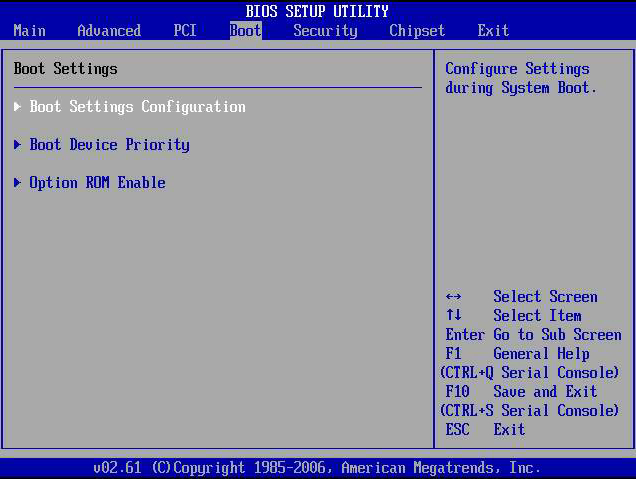
7. If you see a menu with several options, choose “Boot Device Options” or “Boot Menu.”
(On some computers, this appears before the USB list.)
8. Select the USB drive from the list.
It may appear as the USB brand name or as “UEFI: (USB name)”. After selecting the USB drive, you will see a screen like this.
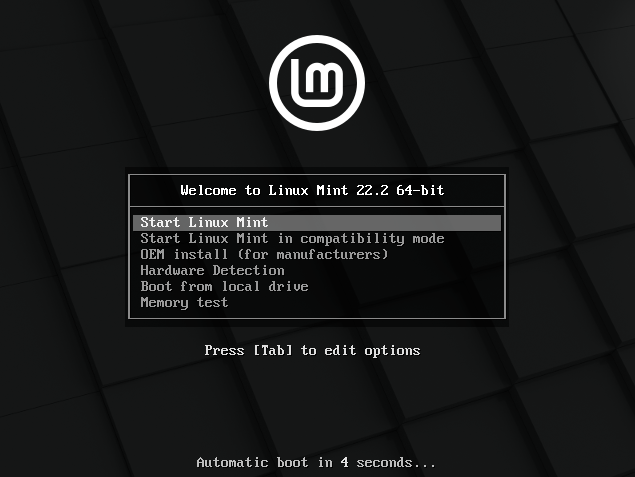
9. This is the Linux Mint start menu.
Leave the default option selected and press Enter to continue.
10. Linux Mint will start.
When you see the Linux Mint desktop, Linux is running from the USB.
Part B → Exploring Linux (The Test Drive)
Now that Linux is running, let’s take a moment to enjoy.
What You’ll See When Linux Starts
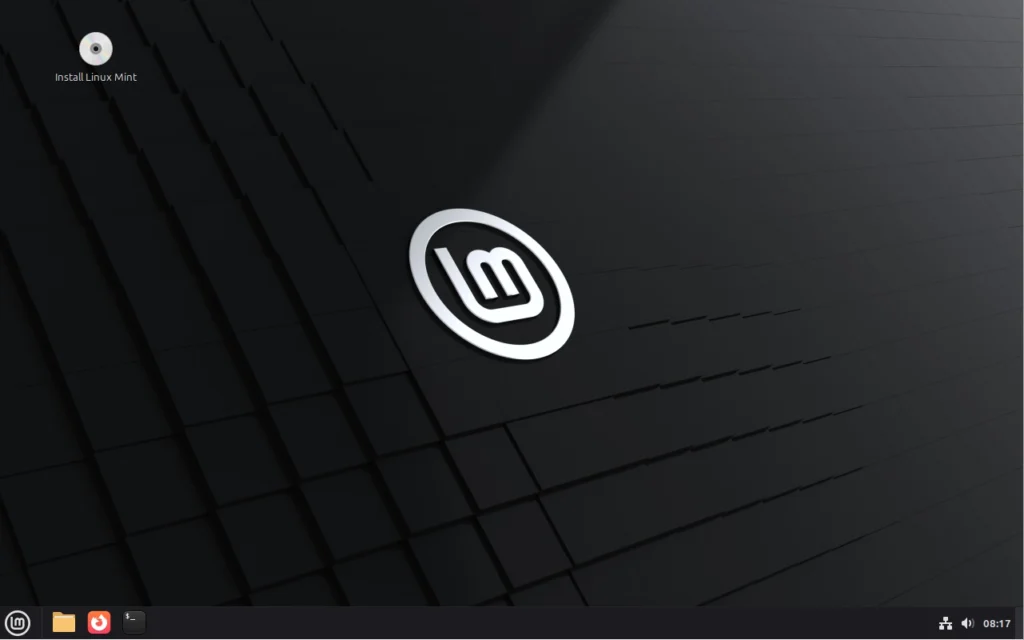
After a short moment, the desktop appears.
You’ll see a familiar layout:
a menu in the bottom-left corner, a taskbar along the bottom, and system icons on the right for things like network, sound, and battery.
You may also notice an Install Linux icon on the desktop.
That option is for later. In this mode, you’re only exploring Linux as it runs from the USB. Installation is covered step by step in a later mode, when and if you decide to continue.
At this point, Linux is simply running and ready to use.
Feel free to take a moment to look around.
Getting Oriented on the Desktop
If you’re coming from Windows, the layout should feel immediately recognizable.
The menu works much like a Start menu: you can click it to browse applications, press the Windows key on your keyboard, and begin typing to search.
Open programs appear on the taskbar, and windows behave as you would expect – you can move them, resize them, and switch between multiple programs just as you do in Windows.
Trying a Few Everyday Things in Linux
You’re not starting with an empty system.
Even before installing Linux, this environment is already usable. You can browse the web, open documents, play music or videos, and work with files right away. Nothing here is locked, restricted, or waiting for setup.
To get a feel for what using Linux is actually like, try a couple of simple, familiar actions.
Open a web browser
Look at the taskbar along the bottom of the screen and click the firefox web browser icon. A browser opens just as it would on any other computer.
You can visit a familiar website, check a page you normally use, or simply confirm that browsing feels normal. Pages load, tabs open, and the browser behaves the way you would expect.

Open a document editor
Next, open the menu in the bottom-left corner of the screen.
Begin typing Writer, then open LibreOffice Writer.
A document editor opens, ready to use.
LibreOffice Writer is a full-featured document editor, similar in layout and structure to what many people are already familiar with in Mircosoft Office. Menus, toolbars, and page layout should all feel recognizable at a glance.
At this stage, you don’t need to configure anything or save a document. Simply opening the application and seeing how it looks and responds is enough.
This is a complete working environment, not a limited demo or preview.

What to Pay Attention To
As you use Linux briefly, pay attention to a few simple things:
- Does the desktop respond the way you expect when you click or open something?
- Do basic things like sound, display, keyboard, and network behave normally?
- Do windows behave the way you’d expect when opening, closing, or switching between them?
- Does the web browser open and behave the way you expect when visiting familiar sites?
- Does LibreOffice Writer look and behave the way you would expect for working with documents?
You’re simply noticing how Linux behaves on your computer, with your particular hardware. Some things may behave differently when running from a USB.
If something works smoothly, that’s good to know.
If something feels off or doesn’t work yet, take note of it and move on.
Those observations can be useful later, if you decide to continue.
About Performance in This Mode
Linux is currently running from a USB drive, not from your computer’s internal storage.
Because of that, performance can vary. Some things may feel very responsive, while larger applications may take a little longer to open. This is normal when running from external media.
Installed performance will be different.
What Happens When You Restart
When you’re finished exploring, you can restart the computer.
Once you do, Linux stops running and your computer returns to how it was before. Unless you manually open the boot menu again, your computer will start Windows as usual.
Deciding Whether to Continue
At this point, you don’t need to decide anything.
Some people reach this stage and feel curious to keep going. Others feel satisfied simply knowing what Linux looks and feels like on their computer.
Both outcomes are fine.
The only question that matters is whether using Linux felt comfortable enough to imagine spending more time with it later – not whether it was perfect, fast, or fully set up.
What Comes Next (Preview of Mode 3)
If you decide to continue, the next mode explains your installation options and helps you choose a safe path for installing Linux.
Stop Point
This is a natural place to stop.
You’ve seen what Linux looks like and used it briefly. Nothing has changed on your computer.
Return to Mode 1 – Preparing a USB Boot disk, or…
If you decide to continue, see Mode 3 · Choosing How to Install Linux