

Will My Windows Programs Work on Linux Mint?
Thinking about switching to Linux Mint, but worried your favorite Windows programs will stop working? That is a very common concern, and it deserves a straight answer.
The short answer: Linux Mint can handle most everyday tasks, but it does not run Windows programs directly. For most people, that means using a different program or a website for the same job. For a few people, it means keeping Windows around for one or two things.
Here is what that looks like in practice, so you can decide before you change anything.
Can Windows Programs Run on Linux Mint?
Not directly. Windows programs (the ones that install from an “.exe” file) are built for Windows and will not install on Linux Mint the way they do on your current PC.
That sounds worse than it is. Most of what people do every day happens in a web browser or in programs that have a Linux version or a good free alternative:
- Web browsing, email, and streaming video
- Writing documents and working with spreadsheets
- Viewing photos, playing music, and watching videos
- Video calls
- Printing
If your computer use is mostly the list above, the switch is usually smooth. If you depend on one specific Windows-only program, read the sections below before you decide.
What Works Right Away
Linux Mint comes with a lot already installed, and its Software Manager works like an app store for the rest.
- Web browsing: Firefox comes pre-installed, and you can add Google Chrome. Gmail, YouTube, Netflix, online banking, and other websites work the same way they do on Windows.
- Email: Thunderbird comes pre-installed for desktop email. Or keep using Gmail, Outlook.com, or Yahoo Mail in your browser.
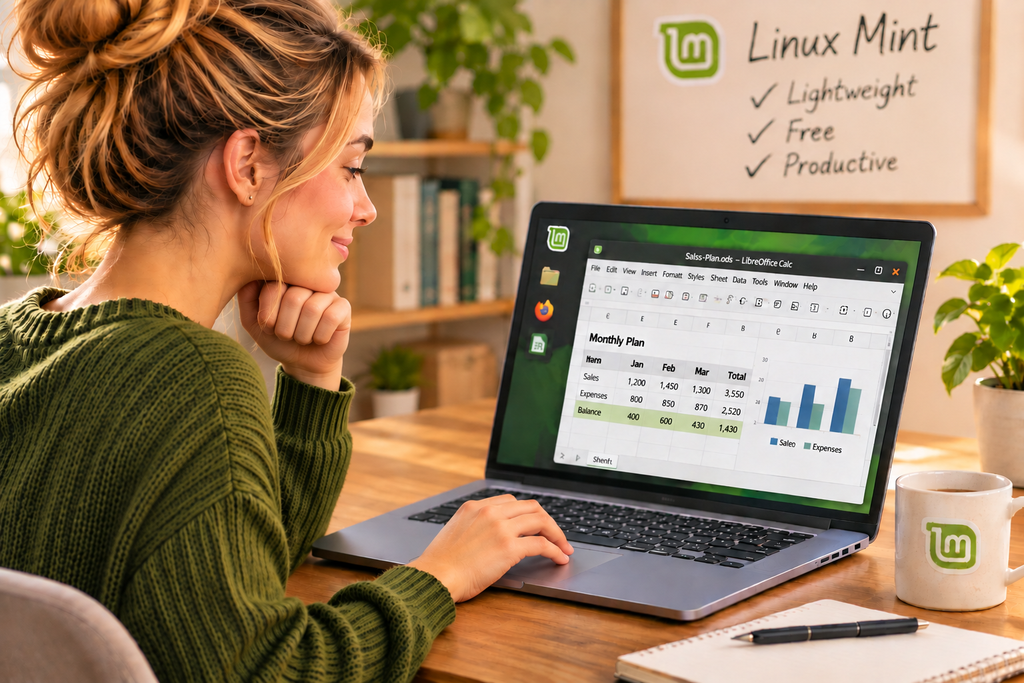
- Documents and spreadsheets: LibreOffice comes pre-installed (more on this below).
- PDFs: Mint’s built-in document viewer and Firefox can both open them.
- Photos and music: Mint includes a basic photo viewer and media player. You can add VLC (plays almost any video or audio file) and GIMP (a free photo editor) from the Software Manager.
- Video calls: Zoom offers a Linux version. Google Meet and Microsoft Teams work in your browser. Microsoft retired its dedicated Teams app for Linux in 2022 and now points Linux users to the browser version.
- Cloud storage: Google Drive, OneDrive, and iCloud all work through your browser. Dropbox offers a Linux app.
- Printers: Many modern printers, especially Wi-Fi and network printers, work with little or no setup. Brother, HP, Canon, and Epson models vary, so search for your exact printer model plus “Linux” before you commit. You can also test it during the live USB step described below.
Microsoft Office Files and Apps
This is the question we hear most. The good news: yes, you can open your Word, Excel, and PowerPoint files on Linux Mint.
Mint includes LibreOffice, a free office suite. According to the LibreOffice documentation, it can open and save Microsoft Office file formats, including .docx, .xlsx, and .pptx. Basic documents, spreadsheets, and presentations usually look and work just fine.
Where to be careful:
- Complex layouts, unusual fonts, and heavily formatted documents can look slightly different. Open your most important files and check them before you rely on LibreOffice.
- Excel macros may not run reliably. LibreOffice has only partial support for Microsoft’s macro language (VBA). If your work depends on macros, test those files first.
Another option: Microsoft 365 for the web (at Office.com) runs Word, Excel, and PowerPoint in your browser, so it works on Linux. You will need a Microsoft account, and some advanced features are limited compared to the desktop versions. It is a handy backup when a file does not look right in LibreOffice.
Photoshop and Other Windows-Only Software
Here is the honest part. Many well-known programs have no Linux version, including Adobe Photoshop, Illustrator, and InDesign. As Tom’s Hardware reports, Adobe has never released a native Photoshop for Linux. A developer has recently shown a workaround, but it requires building a modified version of Wine by hand. That is not a beginner project, and we do not recommend it.
If you rely on one of these programs, you have three realistic choices:
- Use a free alternative. GIMP and Krita can replace much of Photoshop’s everyday use, and GIMP can open Photoshop (.psd) files. Inkscape is a free alternative to Illustrator. Photopea is a free editor that runs in your browser and opens .psd files too.
- Use a web version. Some programs now have browser versions that work on Linux. Check the company’s website for your specific program.
- Keep Windows for that one program. This is the right answer for some professionals, and it is perfectly fine. See “Keep Windows Untouched Until You’re Ready” below.
Common US software, and what to do
Here are the programs readers ask about most:
- TurboTax and H&R Block: Both offer online versions that run in your browser, so they work on Linux. The downloadable desktop versions are made for Windows and Mac, so check the online version first.
- QuickBooks: QuickBooks Online works in your browser. The desktop version is Windows-only, so if you use it, plan to keep a Windows machine for it.
- Quicken: The desktop program is built for Windows and Mac. Check whether Quicken’s browser-based option covers what you need.
- AutoCAD: Autodesk offers a web version, but it does not match the full desktop program. Professionals who rely on AutoCAD should plan to keep Windows.
- iTunes and iPhone backups: iTunes does not run on Linux. Apple Music and iCloud both work in your browser. If you back up or sync an iPhone through iTunes, plan to keep that task on a Windows PC or Mac, or switch to iCloud backups.
- Games: Steam can run many Windows games on Linux, but results vary game by game. If gaming matters to you, check each game before switching.
Running Windows Programs Inside Linux (Advanced)
Most beginners never need this section, but you should know it exists.
- Wine is a “compatibility layer” that lets some Windows programs run on Linux. It works well for some programs and poorly for others, and it can be tricky to set up. You can read more at WineHQ.
- A virtual machine (for example, a free program called VirtualBox) lets you run a full copy of Windows inside a window on Linux. It works reliably for many programs, but you need your own Windows license, and it uses more of your computer’s memory.
A safety note: Windows 10 no longer receives free security updates (see our article on what that means) . A Windows 10 virtual machine has the same weakness. If you go this route, use it only for the one program you need, and keep it offline whenever you can.
Before You Switch: A Simple Checklist
- List the programs you actually use. Write down the programs and file types you depend on, then check each one for a Linux version, a web version, or an alternative. Most beginners find only one or two items that need attention.
- Back up your files. Copy your documents, photos, and anything else you cannot replace to an external drive or cloud storage. Do this before any big computer change.
- Test with a live USB. Linux Mint can run directly from a USB drive without installing anything. Your Windows PC stays exactly as it is. Once Mint is running, check whether Wi-Fi, sound, your screen, your webcam, Bluetooth, and your printer all work, and open a few files from your backup. Testing hardware this way is a long-standing recommendation in the Linux community, as Opensource.com author David Both explains. Our guide walks you through it: [Mode 1: Create Your Linux USB] and [Mode 2: Try Linux Without Installing].
- Decide how to keep Windows within reach. See the next section.
- Know where to find help. The Linux Mint forums are friendly and searchable. For any program you are unsure about, search “Linux alternative to [program name].”
Keep Windows Untouched Until You’re Ready
Many guides suggest “dual-booting,” which means installing Linux Mint on the same drive as Windows. We do not recommend that for beginners, because a mistake during setup can put your Windows files at risk.
The Jiritsu Lab approach is safer: install Linux Mint on an external SSD. An external SSD is a small, fast drive that plugs into a USB port. With Mint on that drive:
- Your Windows PC and its files are not touched.
- Plug the drive in to use Linux Mint. Unplug it to boot Windows, just like before.
- If a Windows-only program turns out to be essential, it is still right there.
This also takes the pressure off. You can use Mint for your everyday work and go back to Windows for the one program that needs it. [Mode 3 of our Start Guide] walks you through it step by step.
Is Linux Mint Right for You?
Switching operating systems is like moving to a new city. There is an adjustment period, but most people settle in faster than they expect, and Linux Mint is designed to feel familiar to Windows users.
Mint is likely a great fit if your daily life is browsing, email, documents, photos, video calls, and streaming, and the programs you depend on have a Linux version, a web version, or a good alternative.
Plan to keep Windows around if you rely on one or two Windows-only programs that have no real substitute, such as specialized professional software, QuickBooks Desktop, or the full Adobe Creative Cloud. With the external SSD approach, that is easy to do.
Either way, you do not have to guess. Back up your files, try Mint from a USB drive, and see for yourself. When you are ready, our [Start Guide] takes you through each step.
Sources
- LibreOffice Help: Using Microsoft Office and LibreOffice and Working with VBA Macros
- Hassam Nasir, Tom’s Hardware: Developer patches Wine to make Photoshop 2021 & 2025 run on Linux
- David Both, Opensource.com: Testing Linux hardware compatibility with USB sticks
- University of Waterloo IT, summarizing Microsoft’s announcement: Teams for Linux: Retirement of Teams Desktop App on Linux and New Progressive Web App
- WineHQ