
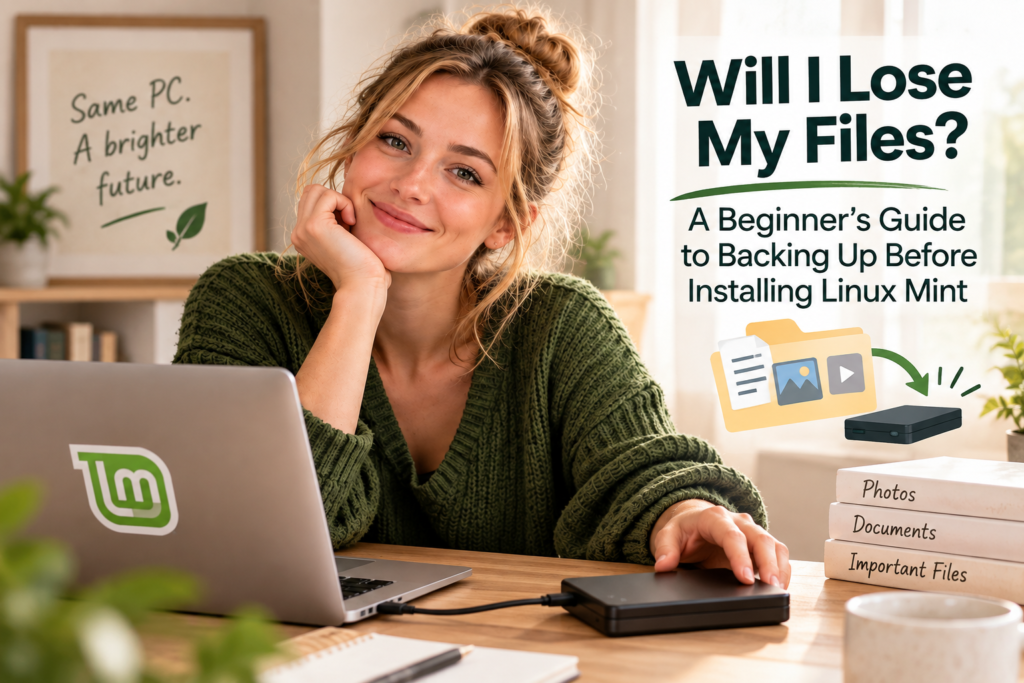
Thinking about switching from Windows to Linux Mint, but worried about losing your photos, documents, or other important files?
That’s a perfectly reasonable concern. The good news is that protecting your files doesn’t have to be complicated. With a simple backup and a few checks, you can prepare for Linux Mint without taking unnecessary risks.
Let’s walk through what you need to know.
1. Will Installing Linux Mint Delete My Windows Files?
It depends on which installation option you choose.
There are two situations worth understanding:
- Trying Linux Mint from a USB drive: You can start Linux Mint from a USB stick and explore it without installing it on your computer. This is a good way to see how it works before making any changes to Windows.
- Installing Linux Mint on your computer: This involves making changes to your computer’s storage, so you need to pay attention to the options you select.
The Linux Mint installer includes an option called “Erase disk and install Linux Mint.” Choosing this option erases the selected disk, including Windows and the files stored on it.
Another option may allow you to install Linux Mint alongside Windows, so you can choose which system to use when your computer starts. However, this still involves changing your disk partitions, so it is not risk-free.
Our advice is simple: back up your important files before installing Linux Mint, regardless of which installation option you plan to use.
If you are not sure what an installer option means, stop and check before continuing.
2. What Files Should You Back Up?
You don’t need to copy every single thing on your computer. Start with the files you would be upset to lose or find difficult to replace.
Use this checklist:
- Documents: Work files, spreadsheets, PDFs, personal writing, and other important documents.
- Pictures and videos: Family photos, videos, and other memories.
- Desktop and Downloads: Files saved directly to your desktop or downloaded from the internet.
- Music and personal projects: Any music, creative work, or other files you want to keep.
- Browser bookmarks: Save or sync your bookmarks if you want to keep your familiar websites.
- Email stored on your computer: If you use an email program that keeps messages locally, check how to preserve them.
On Windows, many of these files are in your user folders, such as Documents, Pictures, Desktop, and Downloads. Open File Explorer and check each one.
Also think about anything stored somewhere unusual, such as a separate drive or a folder created by a particular application.
The aim is not to create a perfect archive of your entire computer. It is to make sure your personal files are safe before you change the operating system.
3. Where Should You Put Your Backup?
For most beginners, the simplest choice is an external USB hard drive or SSD.
Connect it to your Windows computer, open File Explorer, and copy your important folders onto it. You can copy several folders together, then check that they appear on the external drive.
A USB drive with enough space can work too, provided it has room for everything you want to save.
You can also use cloud storage, such as OneDrive or Google Drive, if you already use it. Just remember that uploading a large collection of photos or videos can take time. Check that the upload has finished and that your files are actually available in your cloud account before proceeding.
Keep your backup separate from the disk you are installing Linux Mint onto. Copying files to another folder on the same computer is not enough if the installation erases that disk.
4. Will My Files and Windows Programs Work on Linux?
It helps to distinguish between your personal files and the programs you use to open them.
Many common file types work perfectly well on Linux Mint. Photos, PDFs, videos, and many documents can be opened using compatible applications. Some complex documents may look slightly different depending on the software used.
Windows programs are a different matter. Some will not run on Linux in the same way they did on Windows. You may need to use a Linux alternative or a web-based version instead.
Before switching, make a short list of the applications you rely on most. Check that you have a suitable alternative for anything essential.
Your personal files and your Windows programs are not the same thing. You may be able to keep your documents and photos while replacing some of the software you use to work with them.
5. How Can I Check That My Backup Is Safe?
Copying files is a good start, but don’t assume everything worked without checking.
Before installing Linux Mint:
- Open your external drive in File Explorer.
- Check that the folders you copied are present.
- Open a few documents and photos directly from the external drive to confirm they work.
- Check that you have included anything important that was stored outside your usual folders.
- If you use cloud storage, confirm that the upload has finished and the files are accessible.
Once you are satisfied, safely eject the external drive and disconnect it before beginning the installation. This helps prevent you from accidentally selecting it as the disk to erase.
If you discover that something is missing, take the time to copy it now. It is much easier to fix an incomplete backup while Windows is still running.
Ready to Take the Next Step?
You do not need to become a computer expert to prepare for Linux Mint. You just need to know which files matter to you, make a separate copy, and check that the copy works.
Remember three things:
- Back up first.
- Check the backup before installing.
- Never choose “Erase disk and install Linux Mint” unless you are prepared to erase the selected disk.
If you would like to explore Linux Mint before committing to an installation, read our guide to [trying Linux Mint without installing it]. When you are ready, follow the [Jiritsu Lab Start Guide] to work through the installation step by step.
Give your PC a second life—and give your important files a little protection first.